Step-by-Step Guide
NirvaScribe seamlessly integrates with your telehealth platform to capture both sides of the conversation during virtual consultations.
Note: This feature is compatible with Zoom, Microsoft Teams, Google Meet, Coviu, and other video conferencing services
However, this feature works with Google Chrome and Microsoft Edge
Step 1: Select Telehealth Mode The Dropdown
When you click the dropdown next to "Start Recording" button, select Telehealth mode.

Step 2: Start Your Consultation
Click the "Start" button to begin recording your telehealth session.
Step 3: Select the Telehealth Tab
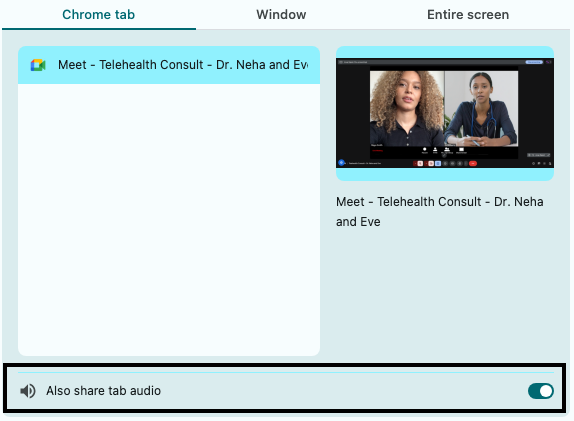
When the screen share popup appears, select the browser tab where your telehealth consultation is running.

Step 4: Enable Audio Sharing (Critical)
Ensure you check the box labeled "Also share tab audio" before proceeding.
Step 5: Click "Share"
Confirm your selection to begin capturing the consultation. NirvaScribe will now transcribe both you and your patient in real-time.
Important Notes:
- Audio sharing is essential - Without enabling "Also share tab audio", NirvaScribe will not be able to hear your patient's voice
- Browser compatibility - This feature only works with Google Chrome and Microsoft Edge
- Works with all telehealth platforms - Compatible with Zoom, Microsoft Teams, Google Meet, Coviu, and other video conferencing services
Browser Settings: Automatically Enable Audio Sharing
To avoid manually selecting audio sharing every time, you can configure your browser to remember your preferences:
🌐 Google Chrome
- - Compatible with Zoom, Microsoft Teams, Google Meet, Coviu, and other video conferencing services
- When the screen share dialog appears, look for a checkbox that says
Remember this decision or similar - Check this box along with the audio sharing option
- Click "Share" - Chrome will remember your preference for this website
- Method 2: Site Permissions
- Click the lock icon 🔒 or settings icon in the address bar
- Select "Site settings" or "Permissions"
- Find "Sound" and set it to "Allow"
- Find "Screen sharing" and set it to "Allow"
🧭 Microsoft Edge
- Method 1: Remember Permissions for Specific Site
- Edge works similarly to Chrome (they share the same base engine)
- Look for the
Remember this decision checkbox in the screen share dialog - Alternatively, access site permissions:
- Click the lock icon in the address bar
- Select "Permissions for this site"
- Set "Sound" and "Screen sharing" to "Allow"
🔧 Troubleshooting
- Audio Not Working Despite Checkbox Being Checked
- When the screen share dialog appears, look for a checkbox that says
Remember this decision or similar - Check this box along with the audio sharing option
- Click "Share" - Chrome will remember your preference for this website
- Screen Share Dialog Not Appearing
- Check if you've previously blocked screen sharing for this site
- Clear site permissions and try again
- Ensure pop-ups are not blocked for NirvaScribe
- Checkbox for Audio Sharing Not Visible
- Browser version: Update to the latest version of your browser
- Windows users: Ensure Windows is updated (audio sharing requires Windows 10 or later)
- macOS users: System audio sharing requires macOS 13 Ventura or later
💡 Best Practice:
We recommend using Google Chrome or Microsoft Edgefor the most reliable screen sharing experience with audio. These browsers offer the best support for persistent audio sharing settings.
📞 Need Help?
If you continue to experience issues with screen sharing or audio, Contact our support team at support@nirvascribe.com
